Factory Reset iPhone to restore your iPhone, iPad, or iPod touch to its original factory settings can help fix persistent software issues, prepare the device for a new user, or wipe all content before selling it. This process erases everything on your device, so it’s important to back up your data before you proceed.
Apple Support
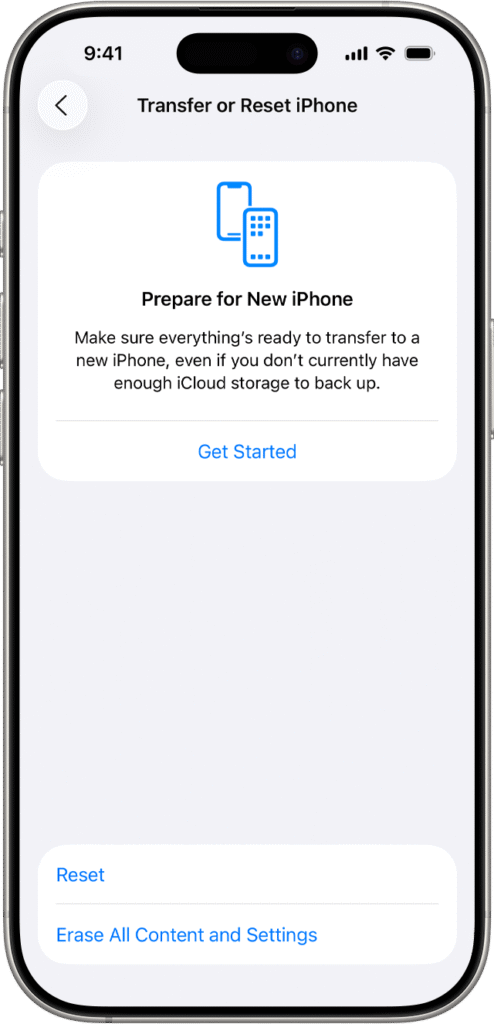
Table of Contents
🔒 Why You Might Need a Factory Reset iPhone
A factory reset restores your device to the original settings it had when it was first purchased. You may want to reset your device if:
✅ It’s running slowly
✅ You see repeated errors or crashes
✅ You’re selling or giving away your device
✅ You want to start fresh without old data
Before you reset, backing up your data is essential so you can restore your photos, messages, apps, and settings later. Apple Support
📦 1. Back Up Your Device First
Before erasing your iPhone, iPad, or iPod touch, make sure to back up your data through:
📍 iCloud Backup
Settings → Your Name → iCloud → iCloud Backup → Back Up Now
📍 Computer Backup
Connect your device to a PC or Mac and back up via Finder or iTunes.
This ensures you don’t lose important photos, contacts, or messages.
⚙️ 2. How to Factory Reset iPhone the Device
Follow these simple steps:
1 Open Settings on your iPhone, iPad, or iPod touch.
2 Tap General.
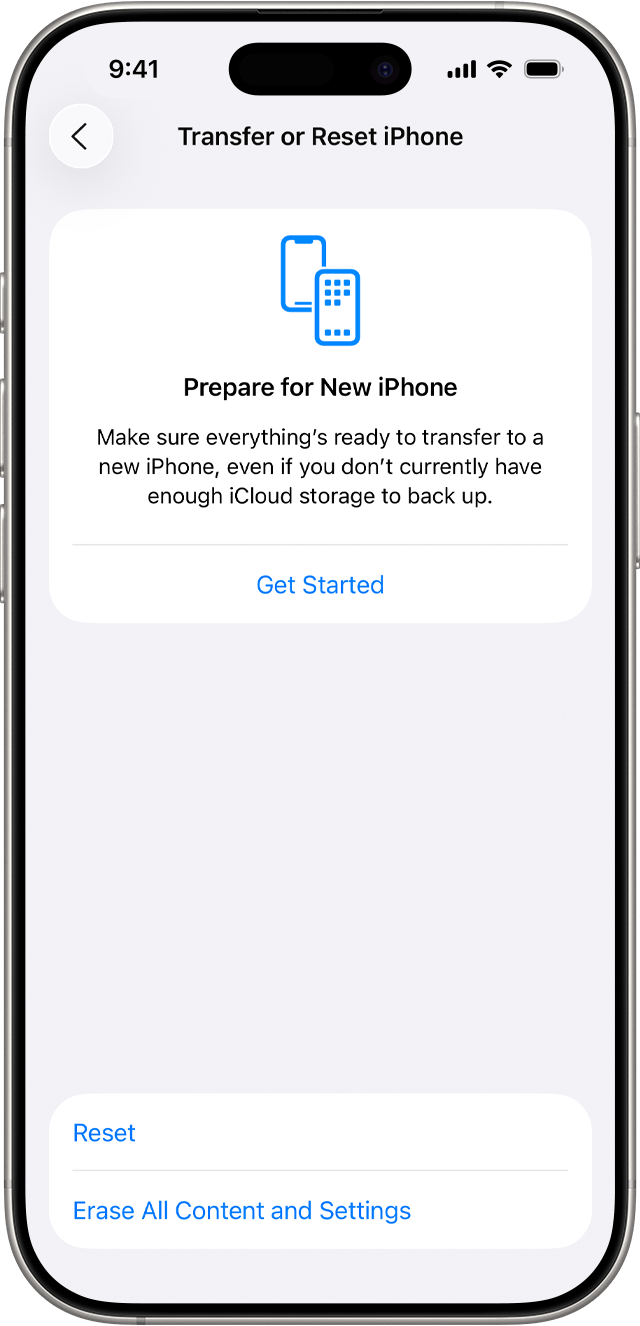
3 Scroll down and tap Transfer or Reset iPhone (or iPad / iPod option).
4 Choose Erase All Content and Settings.
5 If prompted, enter your passcode or Apple ID password to confirm.
6 Tap Erase to begin the reset process.
Your device will restart and begin erasing all data. Wait for it to finish — this may take a few minutes.
Apple Support
🔁 3. After the Factory Reset iPhone
Once your device restarts:
🔹 You’ll see the Welcome Screen
🔹 You can set it up as new
🔹 Or restore from your iCloud or computer backup
This lets you set up your device just like new, or bring back your old data quickly.
⚠️ Important Notes
✔ Make sure your device has enough battery — plug it into power if needed.
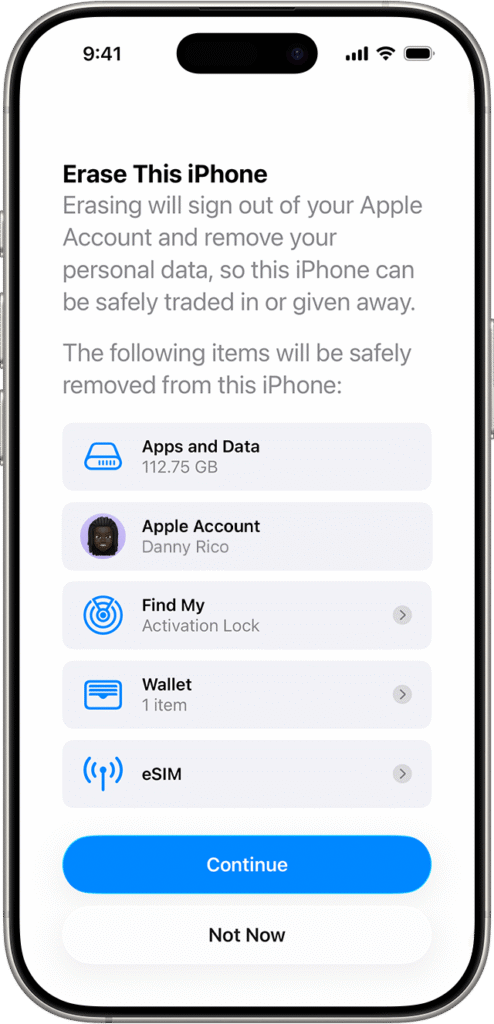
✔ If you use an eSIM, resetting will delete cellular settings, and you may need to reactivate your plan after the reset.
Apple Suppors
⭐ In Short
A factory reset:
🔹 Wipes all data
🔹 Fixes persistent bugs
🔹 Prepares the device for a new user
Always back up your data first to avoid losing important information.
Does factory reset delete everything on iPhone?
Yes. A factory reset deletes all data on your iPhone, including apps, photos, videos, contacts, and settings. That’s why it’s strongly recommended to back up your data to iCloud or a computer before performing a factory reset.
Can I factory reset iPhone without Apple ID password?
In most cases, no. If “Find My iPhone” is enabled, you’ll need the Apple ID and password to complete a factory reset. This security feature prevents unauthorized access if the device is lost or stolen.
Will factory reset fix software problems on iPhone?
A factory reset can fix many software-related issues such as freezing, crashing apps, or slow performance. However, if the problem is hardware-related, resetting the iPhone may not fully resolve the issue.
How long does it take to factory reset an iPhone?
A factory reset usually takes a few minutes, depending on your iPhone model and the amount of data stored on the device. After the reset is complete, the setup process may take a little longer as you restore your data or configure the iPhone as new.